Google Workspace AI Productivity System (2026): Gmail, Docs, Drive Workflow

Google Workspace AI Productivity System (2026): Gmail, Docs, Drive Workflow
For a long time I used Gemini in Workspace reactively — summarize one email, clean one paragraph, forget it existed. The gains only showed up once I turned it into a repeatable loop across inbox, docs, and planning. This is the system I run, and it takes under 15 minutes to set up.
The 3-layer workflow
- Capture layer (Gmail): triage and summarize threads
- Clarity layer (Docs): convert rough notes into usable drafts
- Execution layer (Tasks/Calendar): move decisions into scheduled actions
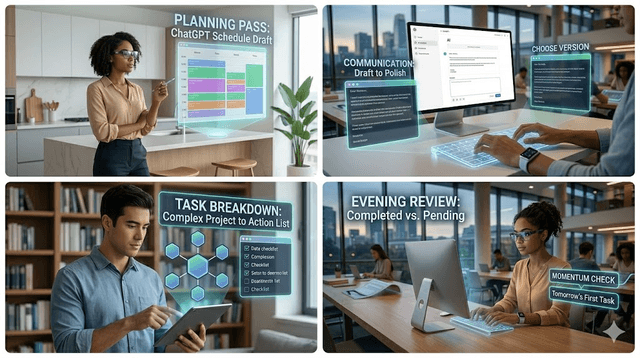
Morning routine (20 minutes)
1) Inbox triage in Gmail (7 minutes)
I ask Gemini to group emails by:
- urgent action
- waiting / reply later
- reference only
Then I archive aggressively and keep the inbox focused on active work.
2) Decision notes in Docs (8 minutes)
For each priority thread, I copy the key points into one doc and ask Gemini for:
- problem statement
- options
- recommendation
- next action
3) Convert actions to schedule (5 minutes)
I create 2–3 Calendar blocks for high-impact tasks only. If it is not scheduled, it usually does not happen — that is just true for me.
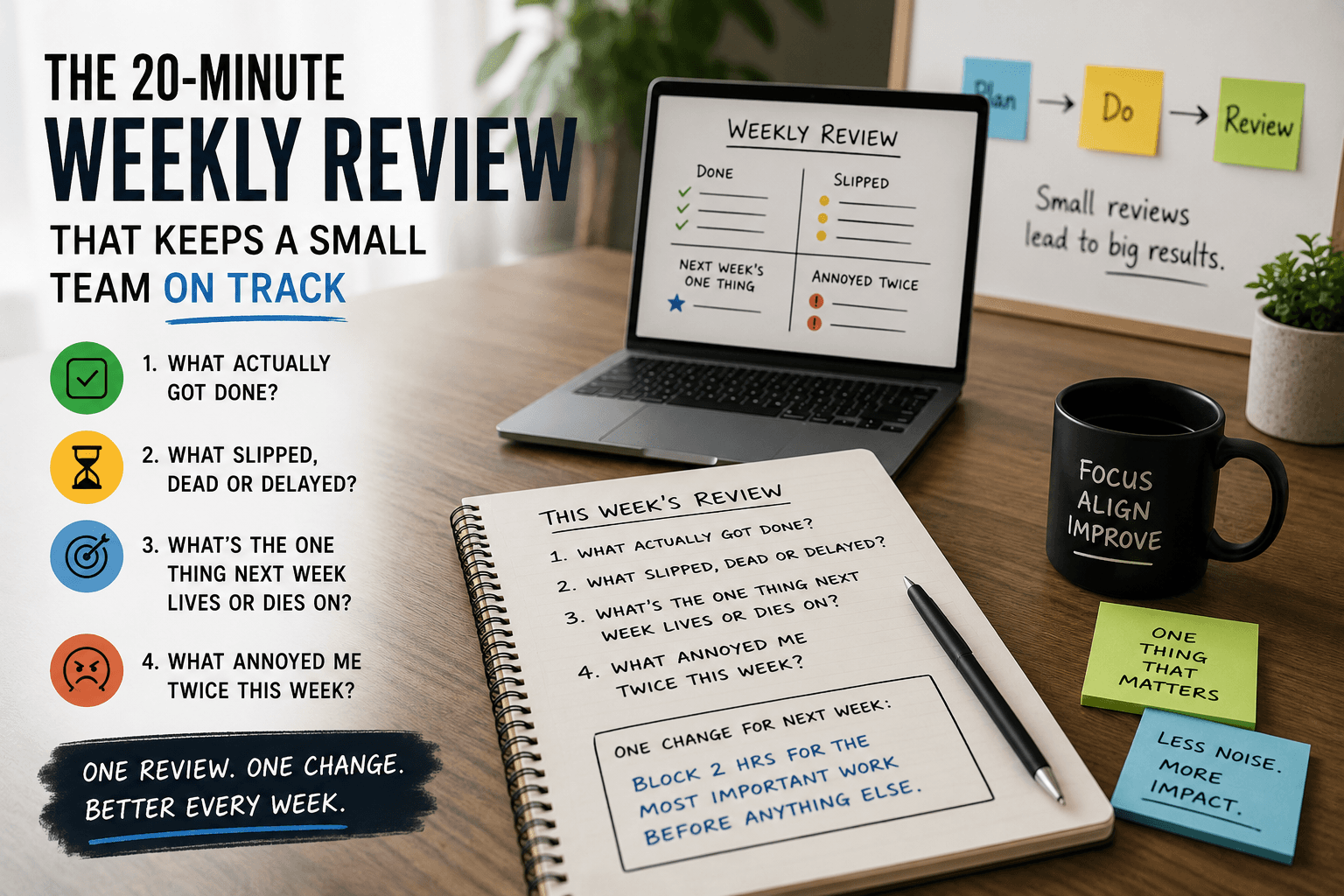
Weekly review
Once a week I run this checklist:
- Which thread types ate the most time?
- Which docs needed heavy rewriting?
- Which tasks slipped repeatedly?
Then I update my prompt templates accordingly.
Prompt templates that work
Gmail triage prompt
Summarize this thread in 5 bullets:
1) what is requested
2) deadline
3) blockers
4) recommended response
5) next action owner
Docs clarity prompt
Restructure these notes into:
- short context
- key points
- recommendation
- next 3 actions
Keep language concise and professional.
Common mistakes
- Letting AI rewrite everything without business context
- Skipping the final human review before sending
- Using too many different prompts with no standardization
- Not converting outputs into calendar blocks
A realistic day with the system
Theory is easy to nod along to and hard to apply, so here is what an ordinary day looks like for me.
At 9:00 I open Gmail with 40 unread. Instead of reading top to bottom, I run the triage prompt on the three longest threads and let Gemini tell me what each is actually asking for. Two are status updates I archive; one needs a decision. Seven minutes later the inbox is down to four items that genuinely need me.
At 9:10 I open a single doc called "Today — Decisions," paste the key points from the thread that needs a call, and run the clarity prompt. Gemini gives me a problem statement, two options, and a recommendation. I disagree with the recommendation, so I edit it — and that disagreement is the whole point. The AI gave me structure; my judgment made the actual decision, in half the usual time.
At 9:18 I block two 90-minute focus sessions for the work that came out of those decisions. Anything not scheduled gets a deliberate "not today" instead of silently slipping.
The loop takes under 20 minutes, and the difference from a normal morning is that I start real work with a clear queue instead of a vague sense of being behind.
Extending it to Sheets and Slides
Most Workspace guides stop at Gmail and Docs, but two more surfaces quietly save time once the core habit sticks.
In Sheets, Gemini is great for explaining a dataset I did not build — describe what each column likely represents, flag rows with missing values, suggest a formula from a plain-language description. I always sanity-check the formula on a few rows first, because as a developer I know a confidently wrong formula is more dangerous than no formula.
In Slides, the best use is turning a finished decision doc into a presentation outline. Paste the summary, ask for a six-slide structure with one idea per slide. You still write the final wording, but you skip the blank-canvas problem that makes deck-building slow.
More prompt templates
Drive search prompt
Find the most recent document about [topic].
Summarize its current status in 3 bullets
and tell me what decision or action is still open.
Meeting recap prompt
Turn these meeting notes into:
- decisions made
- action items with owners
- open questions for follow-up
Flag anything that lacks a clear owner.
Sheets analysis prompt
This sheet tracks [what it tracks].
1) Describe what each column represents.
2) Point out rows with missing or unusual values.
3) Suggest one formula for [calculation], and explain it.
Keeping quality and privacy in check
AI speed only matters if the output is trustworthy, so I keep two guardrails.
First, I never send an AI-drafted email or share an AI-summarized doc without reading it fully. Summaries drop nuance, and a confident summary of a sensitive thread can quietly invert the meaning of a single "not." The human pass is non-negotiable for anything that leaves my hands.
Second, I am deliberate about what goes into a prompt. I do not paste confidential client data, credentials, or other people's personal information into AI tools unless policy explicitly allows it. When in doubt, I describe the situation in neutral terms instead of pasting raw content. Coming from development, I treat this like handling secrets — because that is effectively what it is.
Measuring whether it works
Run it for two weeks and check three signals. Is your inbox reaching near-empty daily instead of carrying a backlog? Are decisions getting written down and scheduled instead of living in your head? Are you rewriting AI output less over time as your templates improve? If all three trend right, keep going. If not, it is almost always because outputs are not being converted into calendar blocks — which is where most productivity systems quietly die.
Frequently asked questions
Do I need the paid Gemini tier? The workflow runs on whatever Gemini access your Workspace plan includes. Paid tiers add larger context and deeper integration, but the habit matters more than the tier.
Will this work for a team? Yes. The decision-doc and meeting-recap steps are especially valuable for teams because they create a shared written record instead of scattered verbal agreements.
Worth it if I only get a few emails a day? The Gmail layer matters less, but the Docs clarity step and calendar conversion still help anyone turning messy inputs into decisions.
Final takeaway
Gemini in Workspace is strongest as a workflow layer, not a one-off assistant. Standardize your prompts, keep your action pipeline tight, and review weekly. That is the whole system.
Get Weekly AI + Tech Updates
Receive practical AI tools, workflows, and hand-picked resources in one concise weekly email.
Software Developer & Founder
MCA graduate and Flutter developer (web, Android & iOS), writing from hands-on experience with AI and productivity tools.
I'm Mohd Washid, a 23-year-old software developer. I hold a BCA (2022) and an MCA (2024), and I build cross-platform apps with Flutter for web, Android, and iOS. I started AI Tech Minty to share the AI and productivity tools I actually use in my day-to-day development work — cutting through the hype with practical, hands-on guidance you can act on the same day.